---
title: How do I use Direct Messaging
description: Learn how to use direct messaging in Swept on the web and mobile apps
---
[Skip to content](https://knowledge.sweptworks.com/knowledge/direct-messaging#main-content)
English
Show submenu for translations
![Swept Logo.png\]](https://knowledge.sweptworks.com/hs-fs/hubfs/Swept%20Logo.png?height=50&name=Swept%20Logo.png)
- [Home](https://www.sweptworks.com/)
- [About Us](https://sweptworks.com/about)
- [Default HubSpot Blog](https://cleansimple-1682788.hs-sites.com/blog)
Open main navigation
Close main navigation
- [Home](https://www.sweptworks.com/)
- [About Us](https://sweptworks.com/about)
- [Default HubSpot Blog](https://cleansimple-1682788.hs-sites.com/blog)
- English
Show submenu for translations
- [Go to login](https://app.sweptworks.com/)
[Go to login](https://app.sweptworks.com/)
How can we help?
- There are no suggestions because the search field is empty.
1. [Swept Support Center](https://knowledge.sweptworks.com/knowledge?hsLang=en)
2. [Getting Started](https://knowledge.sweptworks.com/knowledge/getting-started?hsLang=en)
3. [Teams](https://knowledge.sweptworks.com/knowledge/getting-started?hsLang=en#teams)
# How do I use Direct Messaging
## Learn how to use direct messaging in Swept on the web and mobile apps
This functionality is **ONLY** available in the Scale and Loyalty plans. To upgrade your plan, [click here](https://sweptworks.com/compare-plans?hsLang=en).
### Inbox Sections
You can keep all users up to date using the Swept Inbox. The channels are broken down into multiple sections:
- **Location Channels** - A location channel is created when a location is added, facilitating communication among managers, supervisors, and cleaners assigned to that location, ensuring all approved users receive the message.
- **Client Channels** - Client Channels are for communicating with a client in which managers and supervisors are approved to their location. A client channel is created as soon as a client is added to Swept. If the client is not assigned to a location, only administrators can message them. If the client is assigned to a location, all managers and supervisors approved for the location can message that client.
- **Custom Channels** - In channels, your custom channels appear, which managers and supervisors can create with other managers, supervisors, and cleaners.
- **Direct Messaging** - Communicate one-on-one through direct messaging. Access your direct messages with other managers, supervisors, and cleaners.
### **Can my cleaners send direct messages to one another?**
No. Cleaners can communicate with managers and supervisors once the direct message is created; however, cleaners cannot create direct messages.
### How to access and use the Inbox in the Swept web app?
1\. Log in to the [Swept Web App](https://app.sweptworks.com/).
2\. Click on the **Inbox icon** in the top right corner. To access your location and client channels.

3\. On the left-hand side of the Inbox, you will see your inbox broken up into different menus. These menus include: Clients, Channels, direct messages.

### **How to use the translation feature in the Inbox?**
If your device or browser is set up in a different language than a sent message, then it will automatically translate. You can see the message in the original language by clicking on the three dots and selecting the translate symbol.

### **How to Mute/Unmute a Channel?**
Users can mute channels to stop receiving notifications. When muted, users will not receive push notifications, and the channel will appear as read in both the web app and mobile app.
This action is user-specific; only the user can mute or unmute a channel by clicking the three dots in the top right and selecting the appropriate option. **Note** that the notify checkbox in a user profile does not control channel muting; only individual users can mute channels for themselves

### Send a Direct Message in Web App
- Log in to the [Swept web app.](https://app.sweptworks.com)
- Go to the Swept Inbox by selecting the messaging icon in the top right.
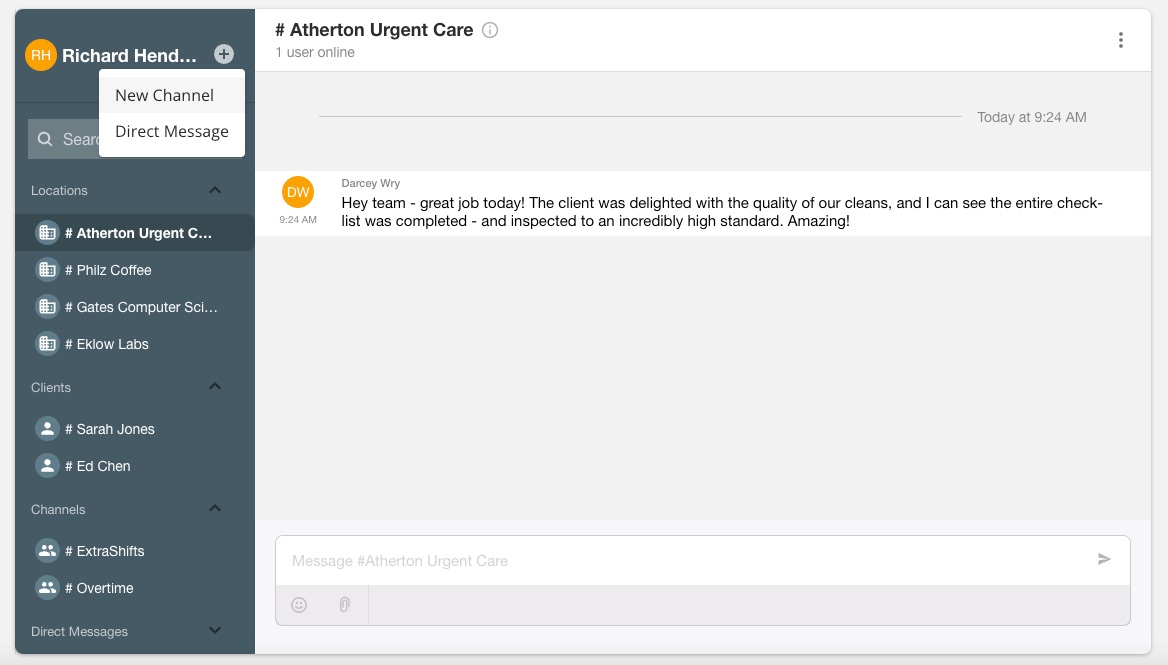
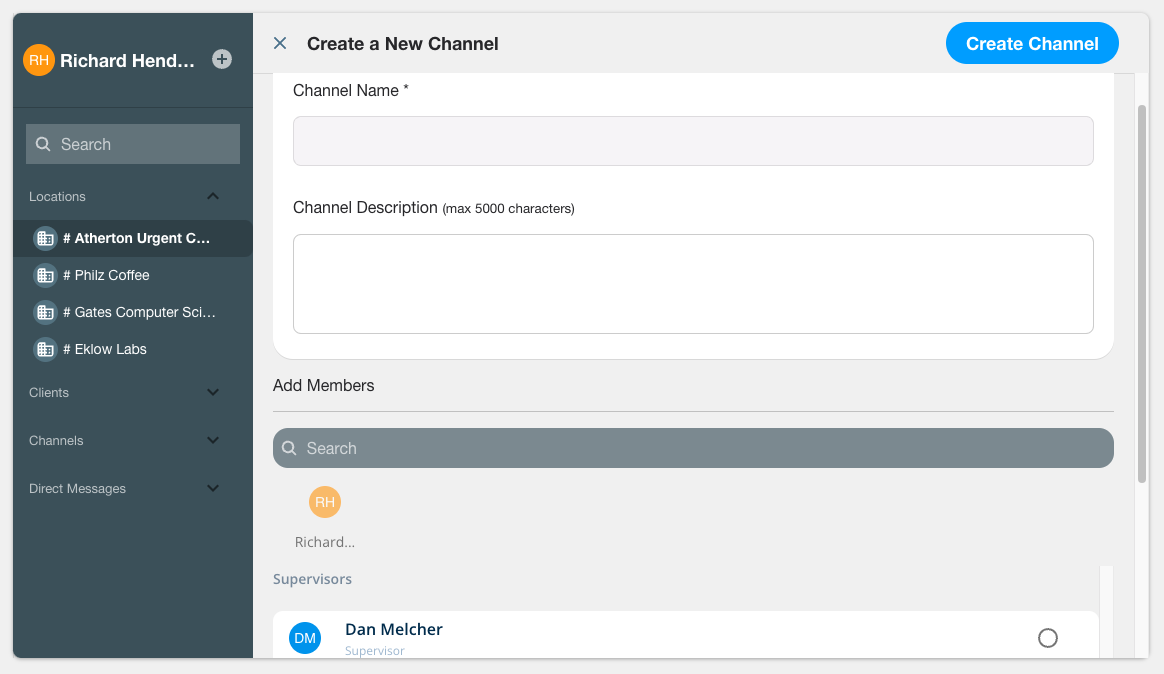
- Beside your name, click the + and select Direct Message.
- Click on the user you would like to communicate one-on-one with. They will appear in the right-hand menu under Direct Messages.
- Use the search bar at the top to find specific users quickly
|  |  |
| --- | --- |
Send Direct Message in Mobile App
- Login into the Swept mobile app and select **Inbox** from the bottom navigation menu.
- Click on the **+** in the top right.
- Select **Direct Message**.
- Click on the user you would like to communicate one-on-one with. They will appear in the Direct Messages tab.
- Use the search bar at the top to find specific users quickly.
|  |  |
| --- | --- |
### **Delete a Message**
**Only Managers** can delete messages within an inbox by moving their mouse to the right of the message and clicking on the three dots. To permanently delete the message, click Delete.

#### FAQs
### **1. Can I send a direct message to a client?**
No. Clients can only be communicated with through the client channel so there is company visibility.
If you have any questions, contact our technical support team in our chat or email us at support@sweptworks.com.
- [What's New in Swept?](https://knowledge.sweptworks.com/knowledge/whats-new-in-swept?hsLang=en)
- [Getting Started](https://knowledge.sweptworks.com/knowledge/getting-started?hsLang=en#main-content)
- [Swept Overview](https://knowledge.sweptworks.com/knowledge/getting-started?hsLang=en#swept-overview)
- [Settings & Configuration](https://knowledge.sweptworks.com/knowledge/getting-started?hsLang=en#settings-configuration)
- [Locations](https://knowledge.sweptworks.com/knowledge/getting-started?hsLang=en#locations)
- [Teams](https://knowledge.sweptworks.com/knowledge/getting-started?hsLang=en#teams)
- [Understanding Reports](https://knowledge.sweptworks.com/knowledge/getting-started?hsLang=en#understanding-reports)
- [Alerts](https://knowledge.sweptworks.com/knowledge/getting-started?hsLang=en#alerts)
- [Scheduling](https://knowledge.sweptworks.com/knowledge/scheduling?hsLang=en#main-content)
- [Scheduling Overview](https://knowledge.sweptworks.com/knowledge/scheduling?hsLang=en#scheduling-overview)
- [Setup and Manage Checklists](https://knowledge.sweptworks.com/knowledge/scheduling?hsLang=en#setup-and-manage-checklists)
- [Time Tracking](https://knowledge.sweptworks.com/knowledge/time-tracking?hsLang=en)
- [Inspections](https://knowledge.sweptworks.com/knowledge/inspections?hsLang=en)
- [Supplies](https://knowledge.sweptworks.com/knowledge/supplies?hsLang=en)
- [Clients](https://knowledge.sweptworks.com/knowledge/clients?hsLang=en#main-content)
- [Setup Clients in Swept](https://knowledge.sweptworks.com/knowledge/clients?hsLang=en#setup-clients-in-swept)
- [Client's View](https://knowledge.sweptworks.com/knowledge/clients?hsLang=en#clients-view)
- [Swept Mobile App](https://knowledge.sweptworks.com/knowledge/swept-mobile-app?hsLang=en#main-content)
- [Mobile Overview](https://knowledge.sweptworks.com/knowledge/swept-mobile-app?hsLang=en#mobile-overview)
- [Communication with Messaging](https://knowledge.sweptworks.com/knowledge/swept-mobile-app?hsLang=en#communication-with-messaging)
- [Resources](https://knowledge.sweptworks.com/knowledge/resources?hsLang=en#main-content)
- [Troubleshooting](https://knowledge.sweptworks.com/knowledge/resources?hsLang=en#troubleshooting)
- [Onboarding](https://knowledge.sweptworks.com/knowledge/resources?hsLang=en#onboarding)
- [Video Library](https://knowledge.sweptworks.com/knowledge/video-library?hsLang=en)
- [Support Center](https://knowledge.sweptworks.com/knowledge/support-center?hsLang=en)
- [Manage your Operations](https://knowledge.sweptworks.com/knowledge/manage-your-operations?hsLang=en#main-content)
- [Daily Pulse](https://knowledge.sweptworks.com/knowledge/manage-your-operations?hsLang=en#daily-pulse)
- [Home](https://www.sweptworks.com/)
- [About Us](https://sweptworks.com/about)
- [Default HubSpot Blog](https://cleansimple-1682788.hs-sites.com/blog)
[](https://www.sweptworks.com/?hsLang=en)
Take Control, Trust Swept
Copyright © 2026, Swept
