![Swept Logo.png]](https://knowledge.sweptworks.com/hs-fs/hubfs/Swept%20Logo.png?height=50&name=Swept%20Logo.png)
Who has access to the Inspections Report?
Managers and Admins who log into the web application can access the Inspection reporting. The ability to complete an inspection is all done via our mobile app.
This functionality is ONLY available in the Optimize, Scale, and Loyalty plans. To upgrade your plan, click here.
Access Inspection Reports
1. Sign in to the Swept Web App
2. Select Reports from the left-hand menu
3. Select "Inspection Reports" from the Reports page.
Once you have accessed the inspection reports, you can apply filters to customize your search.
Quality Scores
When an inspection is completed on our mobile app, there are 4 categories to score the quality.
Old:
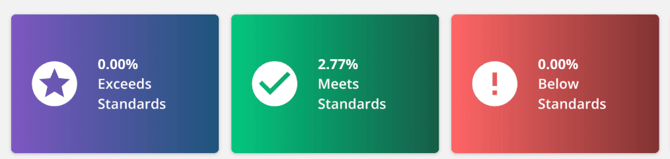
New:

These ratings can be classified into four categories: Meets Standard, Acceptable, Needs Improvement, and Not Inspected.
⚠️ These have changed in July 2025. If you do not see the new scores, be sure to have your team update their mobile app. Go to your device's app store (Google Play Store for Android, App Store for iOS) and navigate to the updates section. From there, you can choose to update individual apps or update all available apps at once.
Ensuring the picture is recent

An automatic timestamp is applied when a photo is taken within the mobile app, ensuring that each image includes a visible date and time in the web reports. This timestamp data is securely stored to prevent any editing or removal, maintaining the integrity of the inspection records.
How do I share an Inspection with someone else?
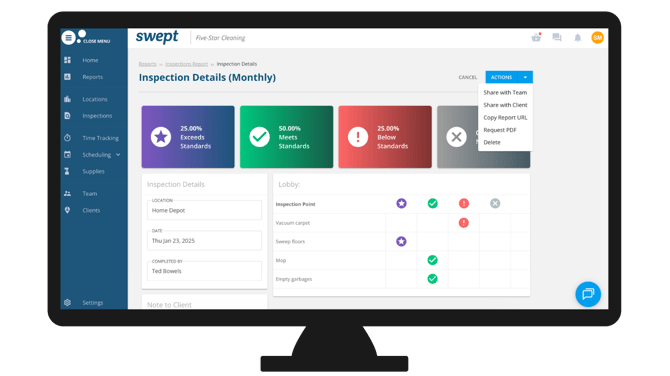
When you open an Inspection, there are three choices.
- Share with Team allows you to select people and email them a link
- Share with Client allows you to select one or all of the clients at that location with a link.
- Copy Report URL allows you to copy the report link, which you can then share with anyone you choose.
- Request PDF initiates the download process, which takes a few minutes depending on the number of images in your inspection. You'll see the PDF generated and then be able to download it once the processing is completed.
If you have any questions, contact our technical support team via our chat or email us at support@sweptworks.com.